
How to Upload a Feed
Uploading your product feed is the first step to analyze your data in SharpFeed.
This guide explains how to prepare, upload, and validate your feed file to get the most accurate audit results.
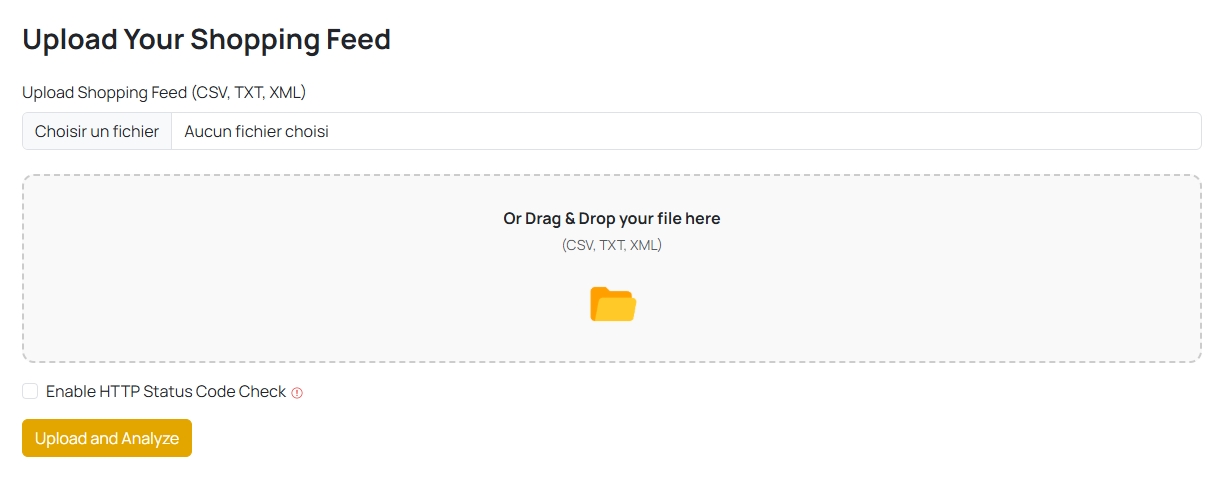
1. Accessing the Upload Page
Once logged in, go to the Upload Feed page:
You can either:
- Click “Upload Feed” from the sidebar, or
- Drag and drop your file directly into the upload zone.
SharpFeed immediately processes your file once uploaded. There’s no need to configure extra settings.
2. Supported File Formats
SharpFeed currently supports three standard formats accepted by Google Merchant Center:
| Format | File Extension | Description |
|---|---|---|
| CSV | .csv | Comma-separated values — easiest format to export from tools like Google Sheets or Shopify. |
| TXT | .txt | Tab-delimited format often used by Channable or manual exports. |
| XML | .xml | Standard structured format used by Merchant Center and most CMS connectors. |
Tip: Always export your latest feed version before uploading, to ensure you’re auditing fresh data.
3. File Requirements
Before uploading, make sure your file meets these criteria:
| Requirement | Recommendation |
|---|---|
| Encoding | UTF-8 (avoid accented characters breaking encoding). |
| Header row | Required for CSV/TXT files. The first row must contain field names (e.g. id, title, description, price, link). |
| Delimiter | Automatically detected — commas , or tabs \t. |
| File size | Up to 10 MB per upload (for large feeds, sample or split them). |
| File name | Use only letters, numbers, and dashes. Avoid spaces or special characters. |
| Maximum SKUs | Varies by plan (see below). |
Per-plan SKU limits
| Plan | Max Products per Feed | Monthly Analyses |
|---|---|---|
| Freemium | 50 | 1 per month |
| Starter | 5,000 | 25 per month |
| Pro | 30,000 | 200 per month |
| Business | 100,000 | 1,000 per month |
SharpFeed will notify you if your file exceeds your plan’s SKU limit. You can upgrade at any time from your account settings.
4. Optional: HTTP Status Check
Before launching the audit, you’ll see an optional checkbox labeled:
“Check product URLs (HTTP status)”
If enabled, SharpFeed will:
- Test each product’s
linkURL (one by one), - Detect broken or redirected links (
404,301,302), - Flag them in your audit results under Feed Accuracy.
⚠️ This check can take longer for large feeds and is available only on Pro and Business plans.
5. Upload and Analyze
Once you select your file:
- SharpFeed automatically detects its type (
CSV,TXT, orXML). - The tool parses your data and validates each product according to SharpFeed’s built-in rules:
- Missing or empty required fields,
- Titles or descriptions too short or too long,
- Incorrect values (e.g. invalid GTIN, missing currency),
- Format issues (e.g. “15.00” instead of “15.00 USD”).
- You’ll be redirected to the Results Page where you can view:
- Key metrics (product count, feed score, optimization opportunities),
- A detailed list of issues with severity, field name, and examples,
- “View Items” buttons to explore affected products.
6. Exporting Your Results
At the top-right of the results page, click:
📥 Download Report as XLSX
This generates an Excel file containing:
- All issues categorized by impact type,
- Affected products and sample titles,
- Your overall feed score.
🧾 You can share this file directly with your developer, agency, or feed management team.
7. Common Errors & Troubleshooting
“Invalid file format”
- Make sure your file ends with
.csv,.txt, or.xml. - Check that the file isn’t compressed (
.zip) or corrupted.
“No header row found”
- Ensure the first line of your file contains field names like
id,title,description, etc.
“Exceeded plan limit”
- The number of SKUs in your feed exceeds your plan’s allowed maximum.
- Upgrade your plan or split your file into smaller parts.
“Empty or missing required fields”
- Verify that columns like
id,title,price, andlinkexist and contain values.
“Analysis taking too long”
- Large XML feeds can take longer to parse.
- Disable the HTTP check if you only need a structural audit.
8. Best Practices for Uploads
- Always name your file clearly (e.g.
sharpfeed_export_october.csv). - Avoid editing feeds manually in Excel, it may break encoding.
- Keep your product IDs consistent between uploads.
- For regular audits, store your feeds in a versioned folder (e.g.
/feeds/2025/). - Double-check character encoding (UTF-8) when exporting from Excel, Google Sheets, or Channable.
Your feed is now uploaded and analyzed!
You can view your results instantly, fix any issues, and re-upload improved feeds to track your progress over time 🚀
Need more help?
Our team is here to assist. Reach out and we’ll get back to you fast.
Contact Support