

When your Google Merchant Center feed contains errors, your products can be disapproved or stop showing in Shopping results altogether.
These issues range from small inconsistencies (like incorrect prices or missing identifiers) to major compliance violations that can suspend your entire account.
The good news: most of them are easy to detect and fix especially if you understand where to look and how to interpret Google’s Diagnostics reports.
This guide breaks down the most common Merchant Center feed errors, what causes them, and how SharpFeed helps you prevent them before they impact visibility or sales.
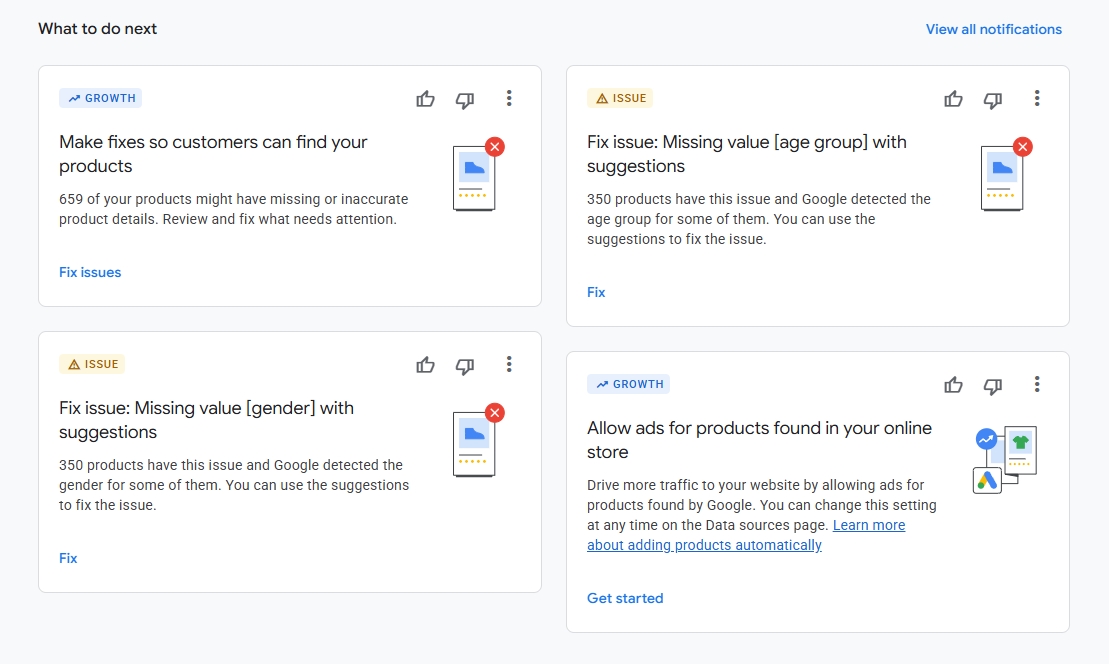
Exemples of errors in Google Merchant Center
1. Understanding Google Merchant Center Feed Errors
Every time you upload or schedule a feed, Google automatically validates your product data.
If something doesn’t match its specifications or your website content, you’ll see issues, growth, or tips notifications in the Notifications tab.
| Type | Meaning | Impact |
|---|---|---|
| Issues | Critical issues that may block your products | Product disapproval |
| Growth | Minor problems that affect performance | Reduced visibility |
| Tips | Recommendations to improve quality | Optional, but useful |
Pro Tip: Even if your items remain “approved with issues,” uncorrected data can reduce your exposure in free listings and Shopping Ads.
2. Where to Find Feed Issues in Merchant Center
There are two main places to identify feed problems:
- Products Reports: Show parsing or format errors right after submission.
- Notifications Tab: The main dashboard for ongoing data quality, showing all errors, warnings, and affected items.
You can also export issue reports as CSV, which is ideal for bulk correction or use SharpFeed to automatically cross-check and flag mismatched values before upload.
3. The Most Common Merchant Center Feed Errors (and How to Fix Them)
1. Incorrect Price or Availability
Cause: The values in your feed don’t match what’s displayed on your product page.
Fix:
- Ensure your feed updates daily (or more frequently for dynamic stores).
- Match your store currency and format (e.g.
79.99 USD). - Use
in_stock,out_of_stock, orpreorderonly. Any other values cause disapproval.
SharpFeed Check: Automatically detect out of stock or 404 products before submission.
2. Missing or Invalid Price Field
Cause: The price attribute is empty, incorrectly formatted, or in the wrong currency.
Fix:
- Make sure every item includes a valid price.
- Don’t use “Free” — use
0.00 USDif needed. - Verify the
sale_priceis lower than the regularprice.
SharpFeed Check: Automatically detect missing or invalid prices
3. Missing Identifiers (GTIN / MPN / Brand)
Cause: Missing or invalid unique product identifiers.
Fix:
- Include at least one of the following:
gtin,mpn,brand. - Don’t reuse the same GTIN for multiple products.
- If your products are handmade or unique, set
identifier_existstoFALSE.
SharpFeed Check: Detects invalid or duplicated GTINs and ensures
identifier_existslogic is consistent.
4. Invalid or Missing Shipping Information
Cause: No shipping cost or country provided.
Fix:
- Add the
shippingattribute in your feed (country:price) or define shipping rules directly in Merchant Center. - Even free shipping must be declared as
0.00. - If using carrier-calculated rates, configure them in Shipping and Returns settings.
SharpFeed Check: Automatically detect invalid or missing shipping infos
5. Missing Required Attributes (Apparel Products)
Cause: Apparel products missing one or more of the following: color, size, gender, age_group.
Fix:
- Add all four attributes for clothing, footwear, or accessories.
- Use standardized values (
male,female,unisex/adult,kids, etc.). - Check that product categorization is correct (
Apparel & Accessories > ...).
SharpFeed Check: Compare your feed attributs to every existing fields. If you miss one, you’ll know it.
6. Invalid or Low-Quality Images
Cause: Promotional overlays, logos, or small image dimensions.
Fix:
- Provide clean product photos (no text or borders).
- Minimum 100×100 px (or 250×250 for apparel).
- Avoid watermarks and placeholders.
- Use Google’s Automatic Image Improvements if necessary.
SharpFeed Check: Check for image (and links in general) accessibility
7. Missing or Short Descriptions
Cause: The description field is empty or too short.
Fix:
- Use descriptive, benefit-focused text (ideally over 100 characters).
- Avoid HTML tags or encoding errors.
- Keep under 5000 characters.
SharpFeed Check: Flags empty or overly short product descriptions and suggests text improvements for SEO and CTR.
8. ID or Identifier Conflicts
Cause: Duplicate or missing product IDs (id field).
Fix:
- Assign a unique, stable ID to every product (e.g. SKU).
- Never reuse IDs between items.
- Avoid changing IDs, as it resets product performance history.
SharpFeed Check: Check for missing or invalid IDs
9. Incorrect Domain or Link Format
Cause: The product link doesn’t match your verified domain or contains errors.
Fix:
- Make sure all product URLs point to the verified domain in Merchant Center.
- Always use HTTPS.
- Avoid redirect or broken links.
SharpFeed Check: Check for every link accessibility
10. Policy Violations
Cause: Restricted products, misleading content, or non-compliance with Google’s policies.
Fix:
- Review Google Shopping Policies.
- Remove prohibited products or update descriptions.
- Contact Google support for account-level violations.
Remember: Fixing feed errors is not just about compliance, it’s about maximizing visibility.
Products with warnings often receive fewer impressions in free listings.
4. Preventing Future Feed Errors
To keep your feed healthy and compliant:
- Automate feed updates — schedule regular syncs or API submissions.
- Validate before upload — run your data through SharpFeed to catch inconsistencies early.
- Keep attributes complete — add optional but valuable fields like
material,pattern, andproduct_type. - Monitor Diagnostics weekly — even small issues can scale quickly.
- Align landing pages — ensure prices, stock, and structured data match your feed exactly.
5. How SharpFeed Helps You Fix and Prevent Feed Errors
SharpFeed automatically scans your feed for missing or invalid data before submission to Merchant Center.
- Detects format or compliance issues
- Highlights missing attributes
- Detects invalid URLs like HTTP 404 or 301
- Flags availability issues
- Checks image accessibility
- Suggests title and description improvements for SEO
You can upload your feed in CSV, TXT, or XML, and SharpFeed instantly audits it helping you fix problems before they trigger Google disapprovals.
Start your free SharpFeed audit now
⚡ Final Takeaway
Google Merchant Center errors don’t just block your ads, they hurt your visibility in free listing, CTR, and sales.
Maintaining a clean, optimized feed means fewer disapprovals and more impressions across both paid and free listings.
Make your feed accurate, complete, and SEO-friendly and let SharpFeed keep it that way.
Sources:
Google - Fix Disapproved or Limited Products in Merchant Center
Google - Product Data Specification